The expensive mistake when ordering a Mac mini isn’t necessarily choosing too little storage. It’s treating memory and storage as the same kind of decision. An external SSD can give you room for files later; it can’t give a Mac mini more RAM. That makes memory the choice to settle first, based on what you actually run rather than the size of your photo library.
For most people buying an M6 Mac mini, 16GB of memory is a sound starting point, while 24GB is the more comfortable choice for sustained multitasking or creative work. On storage, 512GB is a useful default if this will be your main computer. A 256GB model can still make sense when you know which files will live elsewhere.
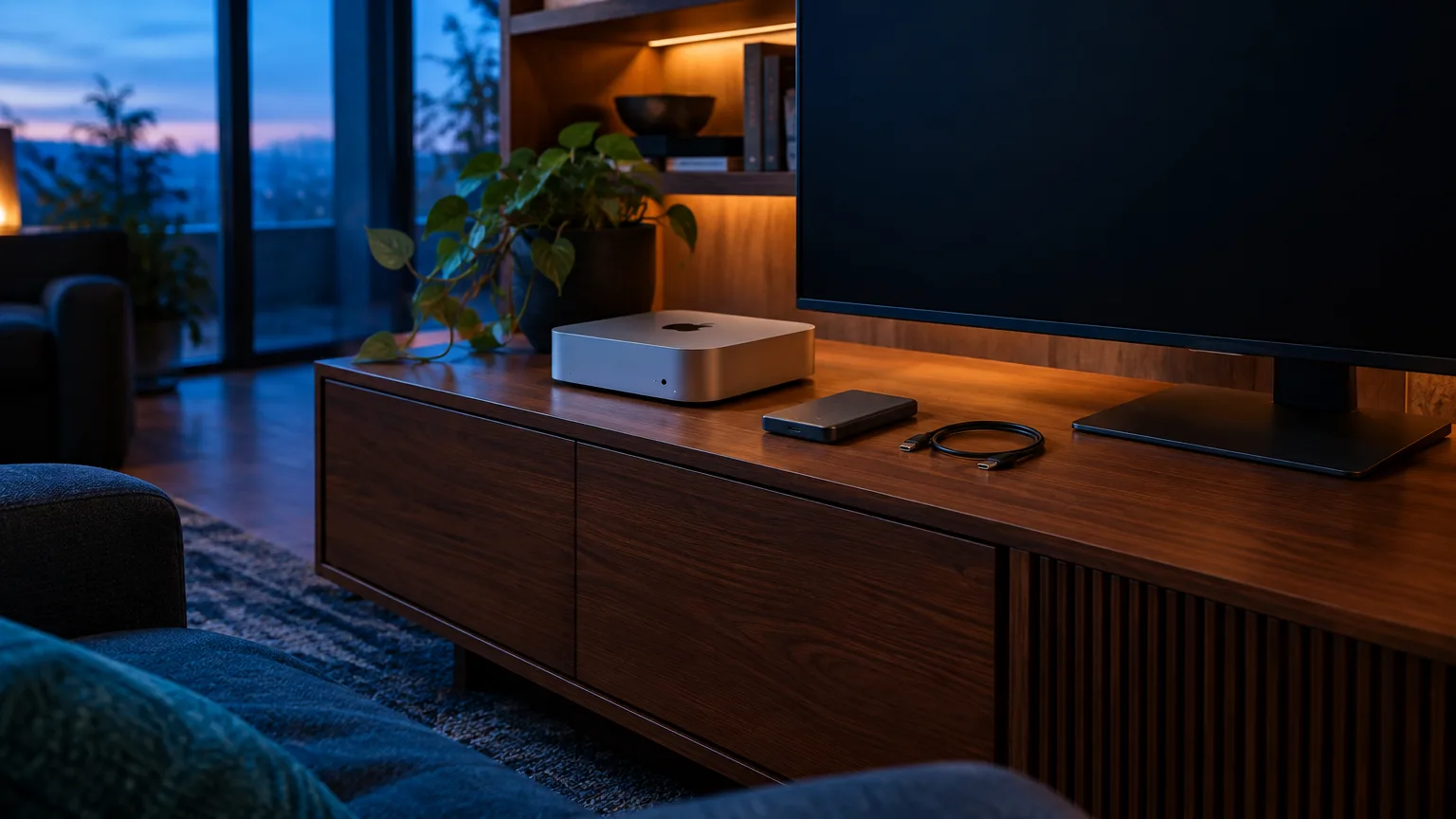
Start with the configurations Apple sells
The 2026 Mac mini comes with an M6 or M5 Pro chip. Apple’s Mac mini specifications list 16GB, 24GB, and 32GB of unified memory for M6 models, with internal SSD choices from 256GB to 2TB. M5 Pro models start at 24GB of memory and 512GB of storage; they can be configured with up to 64GB and 8TB, respectively. The M6 has three rear Thunderbolt 4 ports, while the M5 Pro has three rear Thunderbolt 5 ports—an important distinction if fast external storage is part of your plan.
“Unified memory” is the working memory shared by the CPU and graphics processor. Storage is the space that holds macOS, apps, documents, photos, and projects after you shut down. A large SSD won’t compensate for too little memory, and extra memory won’t make a nearly full startup disk easier to live with.
Choose memory for the work you do at the same time
Apple doesn’t support upgrading memory after purchase on either 2026 Mac mini model. Don’t buy 16GB expecting to add another module in two years.
The useful question is not “How many apps do I own?” but “What is open during a busy hour?” A browser with many tabs, a video call, spreadsheets, and a photo editor all compete for memory at once. So do development tools, virtual machines, large music sessions, and local AI models. More memory is valuable when it lets you keep that work running without regularly moving data between RAM and the startup disk.
When 16GB is enough
Choose 16GB for web browsing, office work, streaming, school assignments, video calls, and occasional photo or light video editing. It’s also a reasonable choice for a dedicated Mac with a narrow job, such as a family computer or a small always-on utility machine.
There’s no need to buy 24GB solely because you want the Mac to last. If your workload is modest and likely to stay that way, the extra capacity may never change how the computer feels. Put the money toward storage, a backup drive, or the display you’ll use every day.
Why 24GB is the sensible step up
Choose 24GB when the Mac mini will be your main work computer and you routinely combine heavier tasks: a large browser session alongside Photoshop, coding tools and local development services, or audio production while other apps remain open. It offers breathing room without assuming that every professional task calls for the maximum specification.
A developer, for example, might be perfectly happy with 16GB while editing code and testing one small project. Add several containers, a simulator, and a busy browser to the same session, and 24GB becomes easier to justify. The distinction is the combined workload, not the job title.
When 32GB or more earns its price
Consider 32GB on an M6 if you already work with large creative projects, multiple virtual machines, substantial development environments, or local AI models whose stated memory needs fit within that capacity. The M5 Pro’s 48GB and 64GB options are for people with demonstrated demands beyond that—not a general-purpose insurance policy. If you need both higher memory capacity and the M5 Pro’s additional processing capability, price the whole machine rather than comparing RAM figures alone.
If you own a Mac now, test your real workload before ordering. Open the apps and projects you normally use together, then look at the Memory tab in Activity Monitor. Apple’s memory-pressure guide explains why green is a better sign than a large amount of “free” RAM; sustained yellow or red pressure is a stronger reason to move up. Also check which app is responsible before assuming every slowdown calls for more memory. A brief spike during an unusual export shouldn’t dictate years of spending.
Size the internal SSD for your everyday files
The internal SSD is the simplest place for macOS, apps, and the files you need without thinking about whether a drive is connected. Treat the capacity you select at purchase as fixed for ordinary use; external storage is the practical expansion route, not a later do-it-yourself internal upgrade.
A 256GB M6 model works best when most documents are modest, large media libraries already have another home, and you’re willing to manage space. It is less appealing as a main family computer that will accumulate photos, downloads, phone backups, games, and several users’ files. A 512GB SSD gives most buyers a less demanding starting point. Move to 1TB if you want a sizable photo library, games, creative applications, or active projects to stay internal. Larger capacities make sense when those files must remain on the machine and you can estimate the need—not simply because the option is there.
Before you order, open System Settings > General > Storage on your existing Mac. Apple’s Storage settings show used and available space by category, which is more useful than guessing from the drive’s advertised size. Separate files you need locally from archives you could move. Then allow room for new projects, downloads, and routine changes in system and app data.
Suppose your existing 512GB Mac holds 340GB, including 150GB of old video you’re comfortable archiving. Another 512GB internal SSD may be plenty, paired with an external drive. If that 340GB is mostly active work you need at hand, 1TB is the cleaner purchase. Paying for capacity you use every day is different from paying to keep an archive inside the computer.
Use an external SSD deliberately, not as a cure for everything
An external SSD is well suited to video footage, completed projects, large media libraries, and other files that can live outside the startup disk. A USB-C SSD may be enough for ordinary file storage; if you regularly edit large files directly from the drive, compare the SSD and enclosure’s actual interface with the Mac mini’s ports. A USB-C-shaped plug alone doesn’t tell you whether a drive uses USB or Thunderbolt, or how fast it will run.
External storage can house more than loose files. Apple provides instructions to move a Photos library to a properly formatted external drive and to relocate a Logic Pro sound library. Those are useful ways to avoid paying for a very large internal SSD. They add a dependency, though: the drive has to be connected when you need the library. For a Photos library, Apple specifically warns that opening Photos without its external drive available can result in a new empty library appearing in the default location.
An external drive can also serve as a startup disk, but that is more involved than storing files on one. On an Apple-silicon Mac, external startup still requires a working built-in startup disk. For most buyers, leaving macOS and everyday apps internal while moving bulky data outward is the simpler arrangement.
Whatever storage mix you choose, a second drive used for your files is not itself a backup. Plan a separate backup for the files you’d hate to lose. Apple’s Time Machine guidance recommends a backup disk with at least twice the Mac’s storage capacity; include external working files in your backup plan as well.
Spend on the constraint you can’t work around
Apple’s U.S. starting prices are $899 for the M6 Mac mini and $1,699 for the M5 Pro model. Those are starting prices, not prices for upgraded memory and storage. When comparing configurations, build the full specification you want in Apple’s store and compare the total with available retailer offers. A discount on a preset model is valuable only if it buys the capacities you need.
If your budget permits just one upgrade, favor memory when you have evidence that 16GB will be tight: you can add a drive later, but not RAM. Favor a larger internal SSD when 16GB comfortably handles your work and your existing storage use shows that 256GB would be cramped. Don’t pay twice for storage—once for a big internal SSD and again for an external one—without a clear role for each.
Be especially careful about moving to M5 Pro merely to reach a storage tier. Its extra cost makes more sense when your work also benefits from its chip, higher memory ceiling, or Thunderbolt 5 connections. Conversely, a buyer regularly using demanding tools shouldn’t assume a large external SSD will make the base M6 equivalent to an M5 Pro.
There’s a narrower case for using a Mac mini as a server. If the main goal is a small public website, compare shared hosting and VPS hosting before buying extra hardware for that job. If you’re weighing a local machine against rented computing resources, controlling ongoing cloud costs belongs in the same budget calculation.
For a straightforward purchase, start with 16GB and 512GB for general use, or 24GB and 512GB for a busier main work machine. Adjust from there using your own memory pressure and storage history. Those measurements tell you far more than an upgrade list about which Mac mini will still fit your work a few years from now.